 Educates
Maintaining a Fixed IP for Educates Local Clusters on macOS
 Jorge Morales PouLead Software Engineer
When running Educates locally on macOS, your cluster's accessibility depends on your machine's IP address. Every time you move between networks — home, office, conference WiFi — your IP changes. DNS resolution breaks, cluster ingresses stop responding, and workshop URLs go stale. This can be a hassle — especially when you don't immediately realize the IP changed and spend time debugging something else entirely. You end up manually updating the resolver configuration before you can get back to work.
In the How to best work locally post, we showed how to configure a local DNS resolver with a recognizable domain like educates.test. And in Automating DNS Resolver Updates, we covered how to detect IP changes and re-sync the resolver automatically. Both of those approaches react to the IP change after it happens. The approach in this post eliminates the change altogether. A better approach is to prevent the problem entirely: give your machine a fixed IP that never changes, regardless of which physical network you're on.
Why a Fixed IP Matters
Educates local clusters use DNS resolution to map a domain like educates.test to your machine's IP. When that IP changes:
- The DNS resolver points to a stale address
- Cluster ingresses become unreachable via their configured hostnames
- Workshop URLs break mid-session
- The
dnsmasqcontainer needs to be reconfigured and restarted
If you configure Educates to use a fixed IP — one that's independent of your physical network interface — none of this happens. Your cluster always resolves to the same address, whether you're on WiFi, Ethernet, or just woke your laptop from sleep.
Virtual Bridge Interfaces on macOS
macOS supports virtual bridge interfaces — software-defined network interfaces that exist independently of your physical hardware. You can assign a static IP to a bridge, and it will remain stable regardless of what happens on en0 or en1.
The key insight is that this bridge doesn't need to route traffic to the outside world. It only needs to be reachable from your local machine, which is exactly what Educates needs.
Creating the Bridge
Create a bridge interface using ifconfig:
sudo ifconfig bridge1 createAssign a static IP in a range that won't conflict with your common networks — 10.10.10.1 works well for this since it's unlikely to collide with typical home or office networks:
sudo ifconfig bridge1 inet 10.10.10.1/24Verify the configuration:
ifconfig bridge1You should see output like:
bridge1: flags=8863<UP,BROADCAST,SMART,RUNNING,SIMPLEX,MULTICAST> mtu 1500 options=63<RXCSUM,TXCSUM,TSO4,TSO6> ether 86:2f:57:13:e3:01 inet 10.10.10.1 netmask 0xffffff00 broadcast 10.10.10.255 Configuration: id 0:0:0:0:0:0 priority 0 hellotime 0 fwddelay 0 maxage 0 holdcnt 0 proto stp maxaddr 100 timeout 1200 root id 0:0:0:0:0:0 priority 0 ifcost 0 port 0 ipfilter disabled flags 0x0 media: <unknown type> status: inactiveThe status: inactive is expected — the bridge isn't connected to any physical interface, and it doesn't need to be. The inet 10.10.10.1 line is what matters.
Configuring Educates to Use the Bridge IP
Update your Educates local configuration to use the bridge IP:
educates local config editSet the domain and resolver host IP:
clusterIngress: domain: educates.testresolver: hostIP: 10.10.10.1Then deploy or update your resolver:
# If you haven't deployed the resolver yeteducates local resolver deploy
# If the resolver is already runningeducates local resolver update
From this point on, your educates.test domain will always resolve to 10.10.10.1 — a fixed address that doesn't depend on your network connection.
The Problem: Bridges Don't Survive Reboots
The bridge you just created is ephemeral. Reboot your Mac, and it's gone. Wake from sleep after a long period, and the network stack may have reset it. This is where automation comes in.
Automating Bridge Creation with a LaunchDaemon
A LaunchDaemon runs as root and starts before any user logs in — exactly what we need for a network interface. Unlike a LaunchAgent (which runs in user space), a LaunchDaemon has the privileges to create and configure network interfaces without sudo.
The Bridge Creation Script
Create the script that will manage the bridge interface:
sudo mkdir -p /usr/local/scriptsCreate /usr/local/scripts/configure_bridge.sh with the following content:
#!/bin/bash
# --- SELF-LOGGING START ---LOG_FILE="/var/log/staticbridge.log"
# Check if log file is larger than 1MB (1048576 bytes) and delete it if soif [ -f "$LOG_FILE" ] && [ $(stat -f%z "$LOG_FILE") -ge 1048576 ]; then    rm "$LOG_FILE"fi
# Ensure the log file is writable (in case it was created by root differently)# If this fails, the script will continue but logs might go to system log.touch "$LOG_FILE" 2>/dev/null
# Redirect all future output (1) and errors (2) to the log fileexec 1>>"$LOG_FILE" 2>&1# --- SELF-LOGGING END ---
# ConfigurationINTERFACE="bridge1"IP_ADDRESS="10.10.10.1/24"
echo "--- Starting execution at $(date) ---"
# 1. Check if the bridge interface already existsif /sbin/ifconfig "$INTERFACE" > /dev/null 2>&1; then    echo "Interface $INTERFACE already exists."else    echo "Interface $INTERFACE not found. Attempting to create..."    if /sbin/ifconfig "$INTERFACE" create; then        echo "Successfully created $INTERFACE."    else        echo "ERROR: Failed to create $INTERFACE."        exit 1    fifi
# 2. Configure the IP Addressecho "Configuring IP $IP_ADDRESS on $INTERFACE..."if /sbin/ifconfig "$INTERFACE" inet "$IP_ADDRESS"; then    echo "IP address assigned successfully."else    echo "ERROR: Failed to assign IP address."    exit 1fi
# 3. Final VerificationCURRENT_CONFIG=$(/sbin/ifconfig "$INTERFACE")if [[ "$CURRENT_CONFIG" == *"$IP_ADDRESS"* ]] || [[ "$CURRENT_CONFIG" == *"10.10.10.1"* ]]; then    echo "SUCCESS: Bridge is up and IP is verified."else    echo "WARNING: Script finished, but IP verification failed. Check interface manually."    exit 1fi
exit 0
Make it executable:
sudo chmod +x /usr/local/scripts/configure_bridge.shA few things worth noting about this script:
- It uses absolute paths for
ifconfig(/sbin/ifconfig) because LaunchDaemons run with a minimalPATH - It handles the log rotation itself, keeping the log file under 1MB
- It's idempotent — if the bridge already exists with the correct IP, it reconfigures it without error
- Each execution is timestamped in the log for easy debugging
The LaunchDaemon Configuration
Create the plist file at /Library/LaunchDaemons/com.educates.staticbridge.plist:
<?xml version="1.0" encoding="UTF-8"?><!DOCTYPE plist PUBLIC "-//Apple//DTD PLIST 1.0//EN" "http://www.apple.com/DTDs/PropertyList-1.0.dtd"><plist version="1.0"><dict>    <key>Label</key>    <string>com.educates.staticbridge</string>
    <key>ProgramArguments</key>    <array>        <string>/usr/local/scripts/configure_bridge.sh</string>    </array>
    <key>RunAtLoad</key>    <true/>
    <key>KeepAlive</key>    <false/>
    <key>StartInterval</key>    <integer>60</integer>
    <key>WatchPaths</key>    <array>        <string>/Library/Preferences/SystemConfiguration/NetworkInterfaces.plist</string>        <string>/Library/Preferences/SystemConfiguration/com.apple.network.identification.plist</string>    </array>
    <key>StandardOutPath</key>    <string>/var/log/educates-bridge.log</string>
    <key>StandardErrorPath</key>    <string>/var/log/educates-bridge.log</string></dict></plist>
This configuration does two things:
- RunAtLoad ensures the bridge is created immediately on system startup
- StartInterval re-runs the script every 60 seconds, catching cases where the bridge was destroyed — after wakeup from sleep, network stack resets, or any other event that removes the interface
- WatchPaths: Monitors network configuration files for changes, triggering on network activation
- KeepAlive: Set to
falsesince we're polling and watching paths
The 60-second interval is a pragmatic choice. macOS doesn't provide a reliable single event for "the network stack just reset your interfaces." Different macOS versions, different hardware, different sleep/wake scenarios — they all behave slightly differently. Polling every 60 seconds with an idempotent script is simple, reliable, and has negligible system overhead.
Loading the LaunchDaemon
sudo launchctl load /Library/LaunchDaemons/com.educates.staticbridge.plistVerify it's loaded:
sudo launchctl list | grep staticbridgeYou should see the daemon in the output with a 0 exit status (or - if it hasn't run yet).
Verifying the Setup
After loading the daemon, confirm everything is working:
# Check the bridge exists and has the correct IPifconfig bridge1 | grep "inet "
# Test DNS resolution through the Educates resolverdig @10.10.10.1 test.educates.test
# Check the daemon logscat /var/log/educates-bridge.log
To test resilience, you can destroy the bridge and wait for it to be recreated:
# Destroy the bridgesudo ifconfig bridge1 destroy
# Wait 60 seconds for the daemon to recreate itsleep 65
# Verify it's backifconfig bridge1 | grep "inet "
Removing the Setup
To remove the LaunchDaemon and bridge:
sudo launchctl unload /Library/LaunchDaemons/com.educates.staticbridge.plistsudo rm /Library/LaunchDaemons/com.educates.staticbridge.plistsudo rm /usr/local/scripts/configure_bridge.shsudo ifconfig bridge1 destroyDesign Rationale
This approach uses a virtual bridge rather than aliasing an IP on an existing interface because:
- Isolation: The bridge doesn't interfere with your primary network configuration — no risk of IP conflicts on your actual interfaces
- Persistence: Virtual bridges can be recreated programmatically without affecting system network settings
- Independence: It works regardless of which physical interface is active — WiFi, Ethernet, Thunderbolt adapter, or none at all
- Simplicity: No need to hook into macOS network preferences, DHCP, or System Settings
The polling-based LaunchDaemon is intentionally simple. macOS offers WatchPaths and network change notifications, but in practice they don't fire reliably for all the scenarios that can destroy a bridge interface. WatchPaths handles the majority of transitions reliably, but a periodic check provides a safety net for edge cases — particularly USB-C docking stations and VPN connections that don't always trigger a SystemConfiguration update. A 60-second poll with an idempotent script trades theoretical elegance for real-world reliability — and the resource cost is effectively zero.
We chose a LaunchDaemon (system-level, runs as root) rather than a LaunchAgent (user-level) because ifconfig requires root privileges. A LaunchAgent would need workarounds for privilege escalation that add complexity without benefit.
If you're combining this with the local resolver and CA setup from How to best work locally, the fixed IP simplifies the overall stack. With a stable address, the auto-sync script from the Automating DNS Resolver Updates post becomes optional — your IP never changes, so the resolver never goes stale. The full recommended stack becomes:
- Loopback alias via LaunchDaemon (this post)
- Local CA with
mkcert(How to best work locally) - DNS resolver with
educates.testpointing to the fixed IP
Once you have all three in place, you can destroy and create clusters freely, switch between networks, and your workshops will always be available at the same URLs.
Bonus points
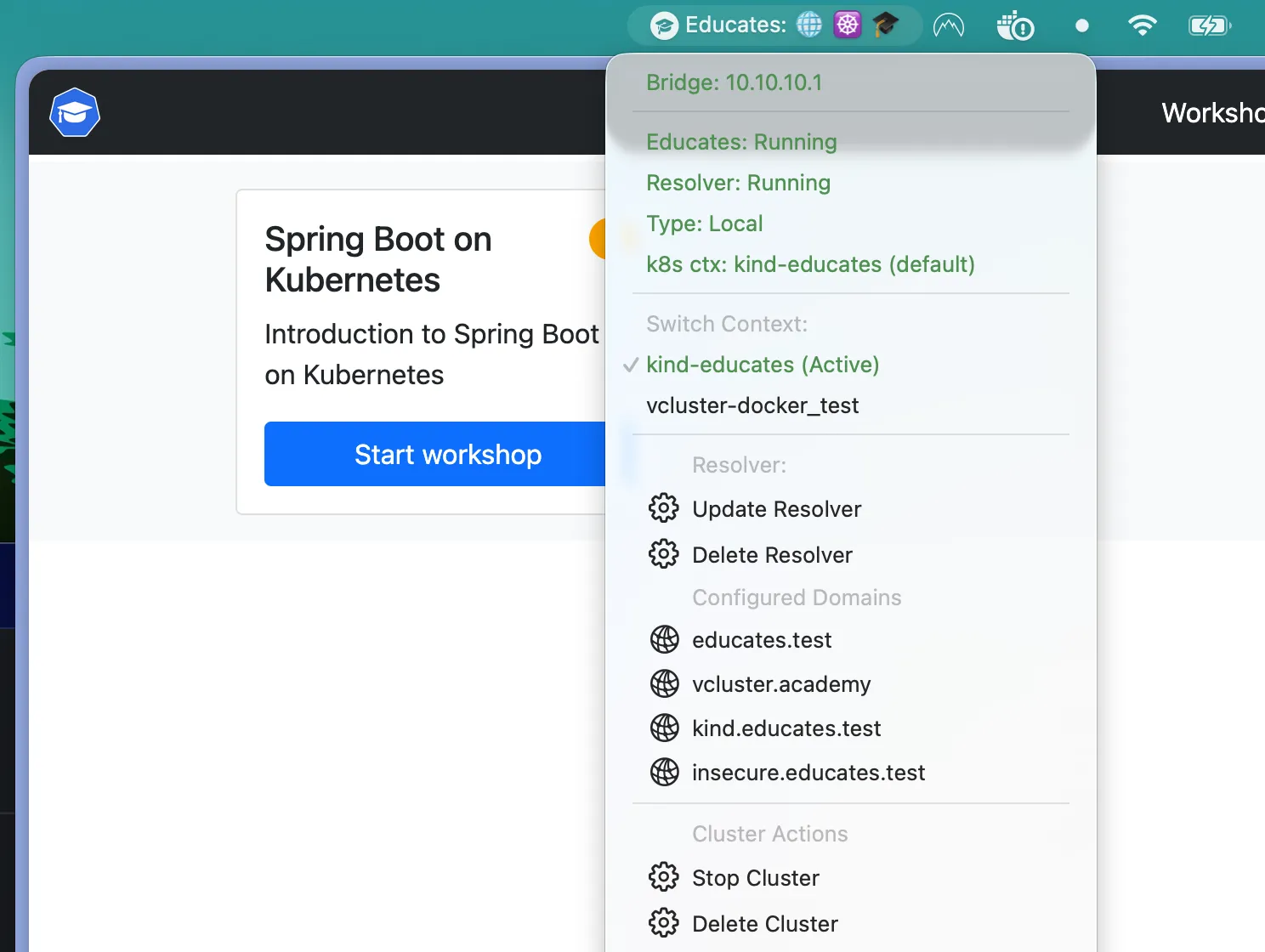
You can even create a SwiftBar plugin to have some of your Educates local cluster details visible, as well as triggering some Educates local commands. But if you want to know how, ask us, and we'll write about that.